 Surya Prarap Singh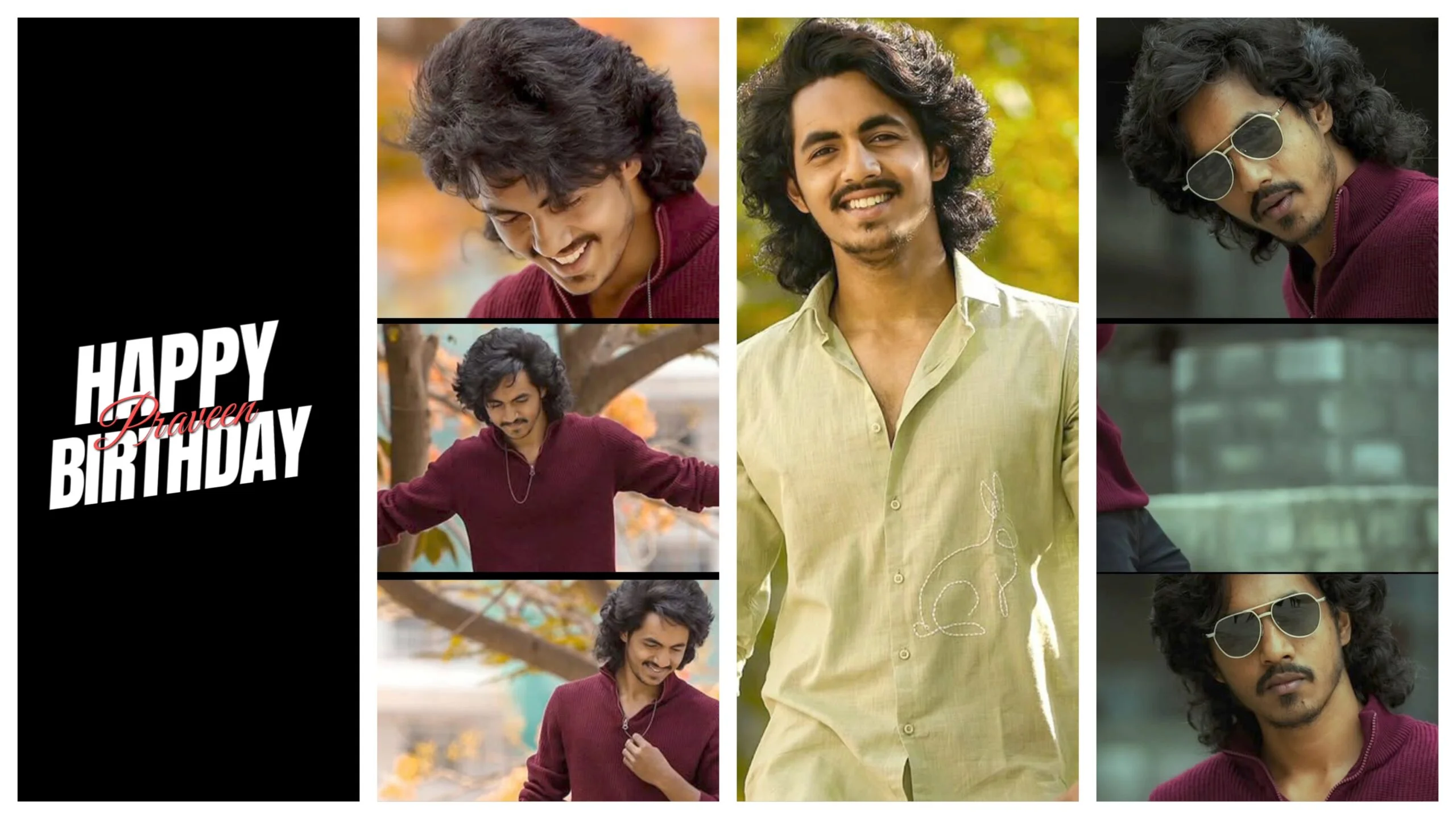
If you have ever scrolled through Instagram or YouTube and stopped dead in your tracks because of a jaw-dropping birthday reel — smooth transitions, glowing text, cinematic color grades, and perfectly synced beats — you already know the power of good editing. And if you want to create that same magic for a boy’s happy birthday reel, Alight Motion is the tool that is going to change everything for you.
In this complete guide, we are going to walk through everything you need to know about editing boys’ happy birthday reels using Alight Motion presets. From downloading the right presets to applying effects, syncing music, and exporting your final masterpiece — this blog has got you fully covered.
Why Alight Motion Is the Best App for Birthday Reels
Let’s be honest. There are dozens of video editing apps out there. CapCut, VN, KineMaster — all solid choices. But Alight Motion has carved out a completely different space, especially in the world of short-form reel editing.
Here is what makes Alight Motion stand apart:
Vector and keyframe animation — You can animate literally anything. Text, shapes, overlays, and color grades can all be keyframed to move, pulse, glow, or shake exactly on the beat.
Layer-based editing — Just like Premiere Pro or After Effects, Alight Motion works with layers. This gives you full creative control over how elements interact with each other.
Preset support (.aep and .preset files) — This is the big one. The Alight Motion community has built thousands of free presets specifically for birthday reels, lyrical edits, and cinematic slideshows. You can download a preset, import it, and your video instantly gets a professional look.
Motion blur and glow effects — The built-in motion blur and neon glow effects are insanely good for creating that high-end birthday reel vibe.
What Are Alight Motion Presets?
Before we dive into the editing process, let’s quickly clear up what presets actually are.
An Alight Motion preset is a pre-built project file or effect file that someone has already designed for you. When you import a preset into your Alight Motion project, it brings in the animation settings, color effects, text styles, and keyframes that were already configured by the creator.
For boys’ birthday reels, presets typically include:
- Cinematic color grading (dark tones, moody blues, golden hour effects)
- Beat sync transitions (cuts and flashes that hit on the music drop)
- Neon or fire text animations for the birthday boy’s name
- Smoke, particle, or glitch overlays
- Countdown effects or confetti bursts
The best part? You do not need to be an expert editor. You just swap in your own photos or videos, change the name text, and your reel is ready.
Types of Presets Perfect for Boys’ Birthday Reels
Not every preset fits every vibe. Here is a breakdown of the most popular preset styles used for boys’ birthday edits:
1. Dark Cinematic Preset
This is the most popular style for boys. Think deep black backgrounds, slow zoom-ins on photos, dramatic music, and gold or red title text. It feels serious, powerful, and emotional all at once.
2. Neon Glow Preset
Bright neon colors like electric blue, purple, and green against a dark background. Perfect for gaming-themed birthday reels or edits that have a futuristic, cool-guy aesthetic.
3. Smoke and Fire Preset
This preset combines smoke overlays with fire particle effects. It is dramatic, bold, and makes the birthday boy look like an absolute legend. Commonly used for boys who are into action movies, sports, or attitude edits.
4. Gold and Black Luxury Preset
Clean, elegant, and premium-looking. Gold glitter effects, black backgrounds, and smooth sliding transitions. Great for milestone birthdays like 18th or 21st.
5. Lyrical Beat Sync Preset
Built to sync perfectly with popular birthday songs. Every cut, every flash, every zoom happens exactly on the beat drop. This style is hugely popular on Instagram Reels right now.
Step-by-Step: How to Edit a Boys’ Birthday Reel in Alight Motion
Let’s get into the actual process. Follow these steps and you will have a stunning birthday reel ready in under an hour.
Step 1 — Collect Your Materials
Before you open Alight Motion, gather everything you need:
- 10 to 20 photos or short video clips of the birthday boy
- A birthday song (popular choices include trending Bollywood birthday tracks, English beats, or emotional background music)
- The Alight Motion preset file you want to use
Step 2 — Download and Import the Preset
Go to any trusted Alight Motion preset community (Telegram groups, YouTube preset downloads, or dedicated websites). Download the preset file — it usually comes as a .aep file or is shared via an Alight Motion share link.
Open Alight Motion, tap the + button to create a new project, then select Import and load the preset. Your timeline will automatically populate with all the animations and effects.
Step 3 — Replace the Media
The preset comes with placeholder images or black screens. Tap on each placeholder layer and replace it with your own photos or video clips of the birthday boy. Try to match the mood — use serious or emotional photos for dramatic presets and fun, smiling photos for colorful presets.
Step 4 — Edit the Text
Find the text layers in the timeline. These usually say things like “Happy Birthday” or “Your Name Here.” Tap each text layer and replace the placeholder with the actual name of the birthday boy. Adjust the font size or color if needed to make it look just right.
Step 5 — Sync with the Music
Add your chosen birthday song to the project. If the preset was designed for beat sync, listen to the music carefully and make sure the transitions and effects line up with the beats. Alight Motion has a waveform display that helps you see exactly where the beats fall.
Step 6 — Apply Final Color Adjustments
Go through the color grade layers in the preset and fine-tune them to match your photos. Every phone camera has a slightly different color profile, so you may need to adjust brightness, contrast, or saturation slightly.
Step 7 — Export in High Quality
When you are happy with the edit, tap the export button. Choose 1080p resolution and 30fps or 60fps depending on the preset. Export as MP4 for sharing on Instagram, WhatsApp, or YouTube.
Final Thoughts
Creating a boys’ happy birthday reel using Alight Motion presets is one of the most rewarding things you can do as a video editor. It takes something as simple as a collection of photos and turns it into a cinematic tribute that the birthday boy will remember for years.
Whether you are a complete beginner who just discovered Alight Motion or a seasoned editor looking to level up your birthday edits — presets are the shortcut that makes professional-quality results accessible to everyone.
So download your preset, pick your song, gather those photos, and start editing. The birthday boy deserves nothing less than your best work.


)
)