 Surya Prarap Singh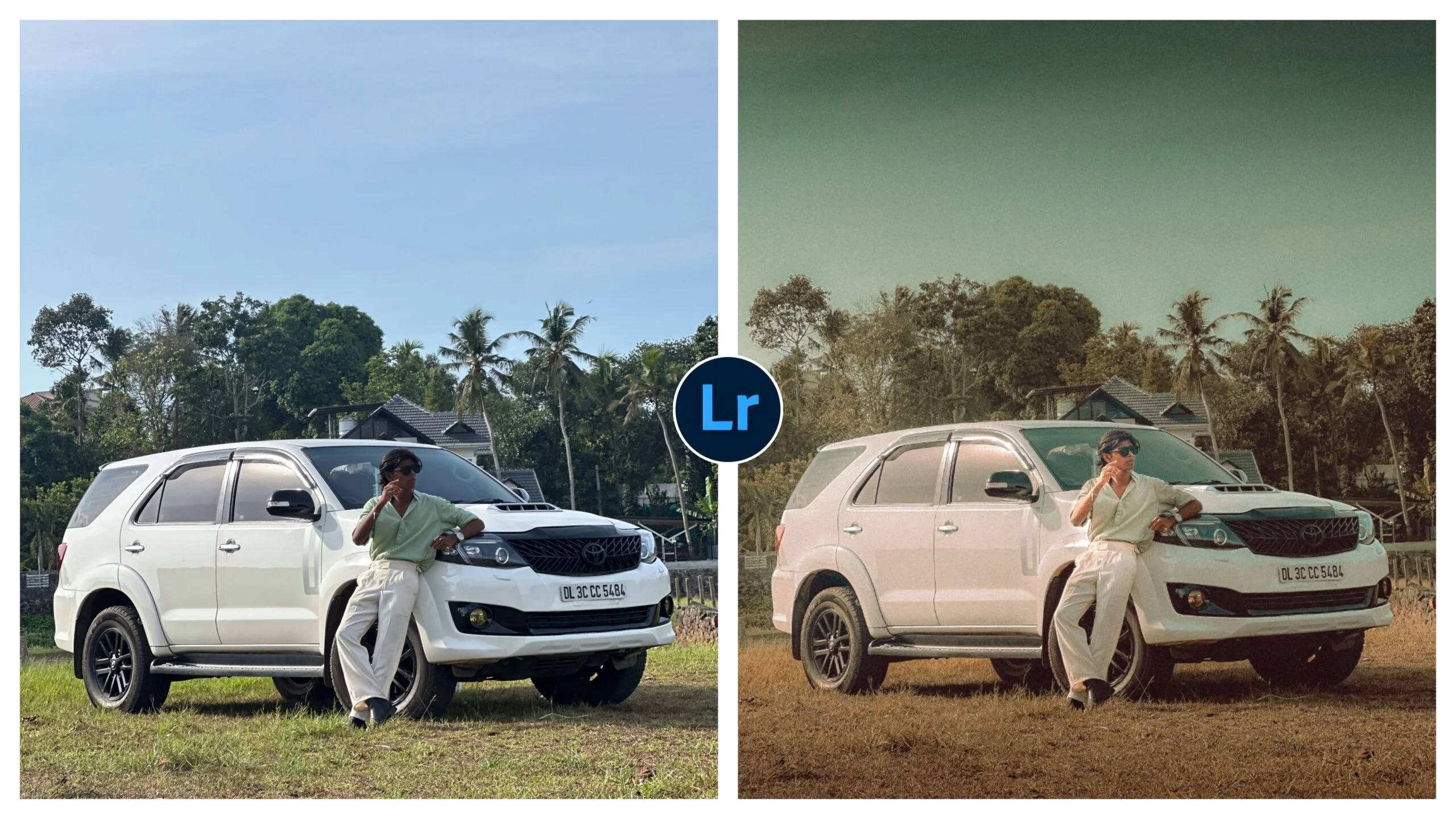
We have all been there. You are scrolling through Instagram, admiring the work of travel photographers and lifestyle influencers. Their photos have a certain “glow”—that warm, sun-drenched, cinematic quality that makes a simple sunset look like a scene from a high-budget movie. You look at your own photos, and they feel a bit… flat.
The secret? It isn’t necessarily a multi-thousand-dollar camera setup. Most of the time, it comes down to color grading.
Specifically, the “Orange Vibe” aesthetic—a look characterized by deep, warm oranges, moody shadows, and that perfect cinematic contrast—is one of the most sought-after styles in photography. The good news? You don’t need to spend a fortune on expensive preset packs to achieve this.
In this guide, we’re going to walk through how to leverage free cinematic Lightroom presets to elevate your photography, how to customize them like a pro, and how to find the right ones without falling into a spam-filled rabbit hole.
What Exactly is the “Orange Vibe”?
The “Orange Vibe” is deeply rooted in color theory. In the color wheel, blue and orange sit opposite each other, creating a high-contrast, visually pleasing combination.
When you apply an “Orange Vibe” preset, you are typically doing a few things:
- Shifting the Hue: Pushing yellows and oranges toward a warmer, golden spectrum.
- Deepening the Shadows: Often tinting the shadows slightly blue or teal (the “Teal and Orange” look), which adds depth and a cinematic feel.
- Reducing Saturation: Pulling back on bright, distracting greens or magentas so the warm tones become the hero of the image.
This look works exceptionally well for beach photography, golden hour portraits, desert landscapes, and street photography with artificial lighting at night.
Why Use Presets Instead of Manual Editing?
If you are a beginner, manual editing can be intimidating. You open Lightroom, see 50 different sliders, and suddenly you’re lost. Presets are essentially “recipes” that other photographers have created to get a specific look instantly.
Using a preset as a starting point offers three major benefits:
- Consistency: If you are building a brand or a feed, presets keep your photos looking like they belong in the same collection.
- Efficiency: Instead of spending 20 minutes per photo, a preset gets you 80% of the way there in one click.
- Learning: By applying a preset and then looking at the settings, you can learn how the creator achieved that look. It’s like peeking at the answers to a math test.
How to Install Your Presets (Quick Tutorial)
For Lightroom Mobile (Free Version):
- Download the preset file (usually a
.dngfile). - Open the Lightroom Mobile app and import the photo.
- Tap the three dots in the top right corner.
- Select “Create Preset” and name it.
- Now, open any other photo, go to the “Presets” tab, and your new preset will be there!
For Lightroom Desktop:
- Go to the “Edit” panel and click the “Presets” icon.
- Click the three dots at the top of the Presets panel.
- Select “Import Presets” and choose the
.xmpfiles you downloaded.


)
)